
Installing locwinn, step by step
This page walks through every single click, in order, with pictures. It takes about five minutes. You can't break anything by going slowly — and if you get stuck at any point, email license@locwinn.com and a human will help you personally.
Before you start, you need two things:
- The email we sent you when you purchased. It contains your license
key — a code that looks like
LOCW-XXXX-XXXX-XXXX-XXXX. - A Windows 10 or 11 computer where you can say "yes" to administrator questions.
Step 1 — Download the installer
Click
here to download the installer. Your browser will save a file called
locwinn-installer.exe. Most browsers show the download at the top
right of the window, or in a bar along the bottom.
Step 2 — Open the file you downloaded
Click on the downloaded file to open it. If you can't find it: open the
Downloads folder — press the yellow folder icon in your taskbar, then
look for "Downloads" in the left-hand list. The file is called
locwinn-installer. Double-click it.
Step 3 — If Windows shows a blue warning, that's OK
Windows may show a blue screen saying "Windows protected your PC". This is Windows being cautious about programs from small makers — it is not saying anything is wrong with the file. To continue:
- Click the small "More info" link in the text.
- Click the "Run anyway" button that appears.
Step 4 — Say yes to the permission question
Windows will then ask, in a darkened screen: "Do you want to allow this app to make changes to your device?" Click Yes. locwinn needs this permission to set up the blocking.
Step 5 — The welcome screen
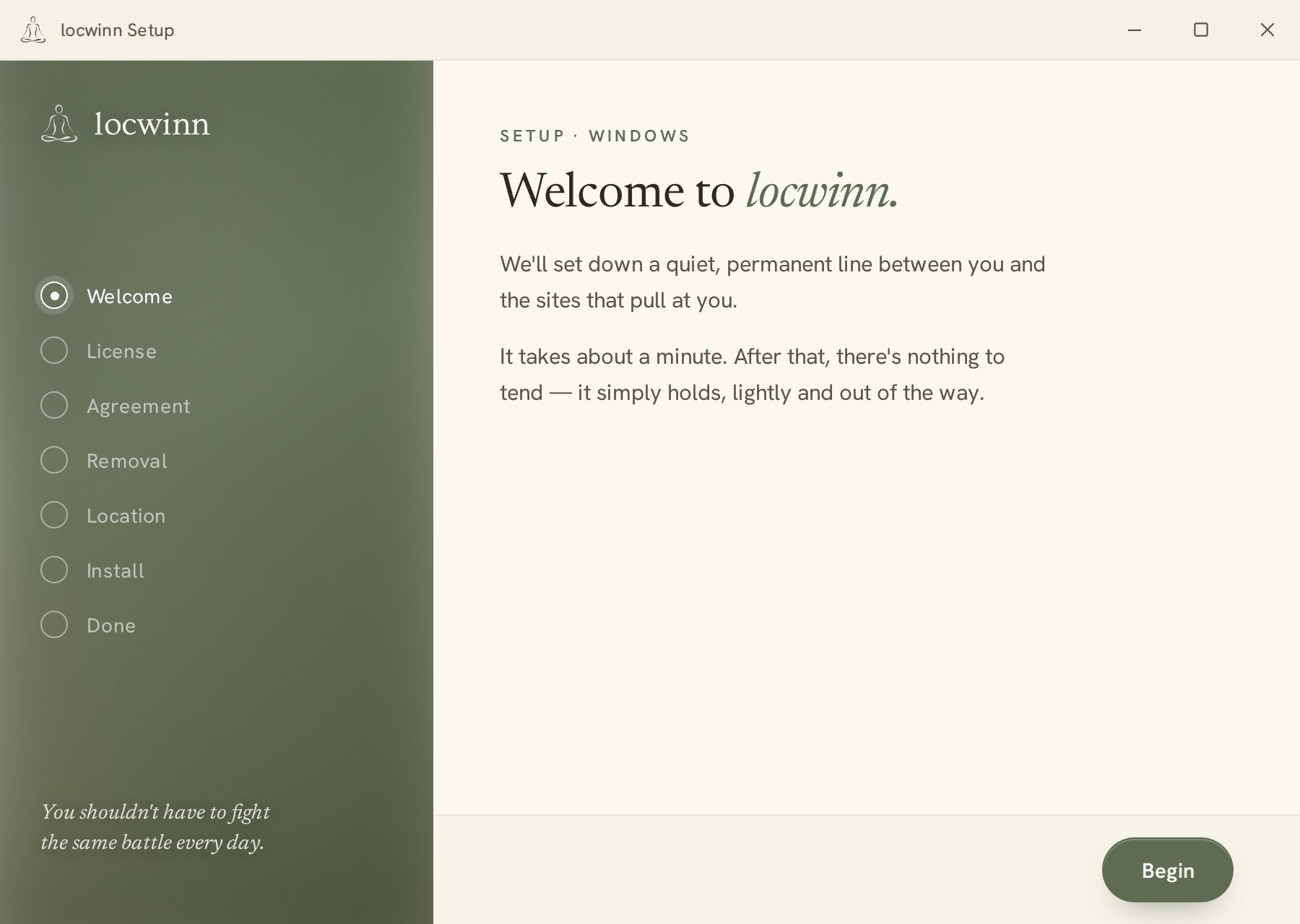
The locwinn setup window opens and looks like the picture above. Click the green Begin button at the bottom right.
Step 6 — Enter your license key
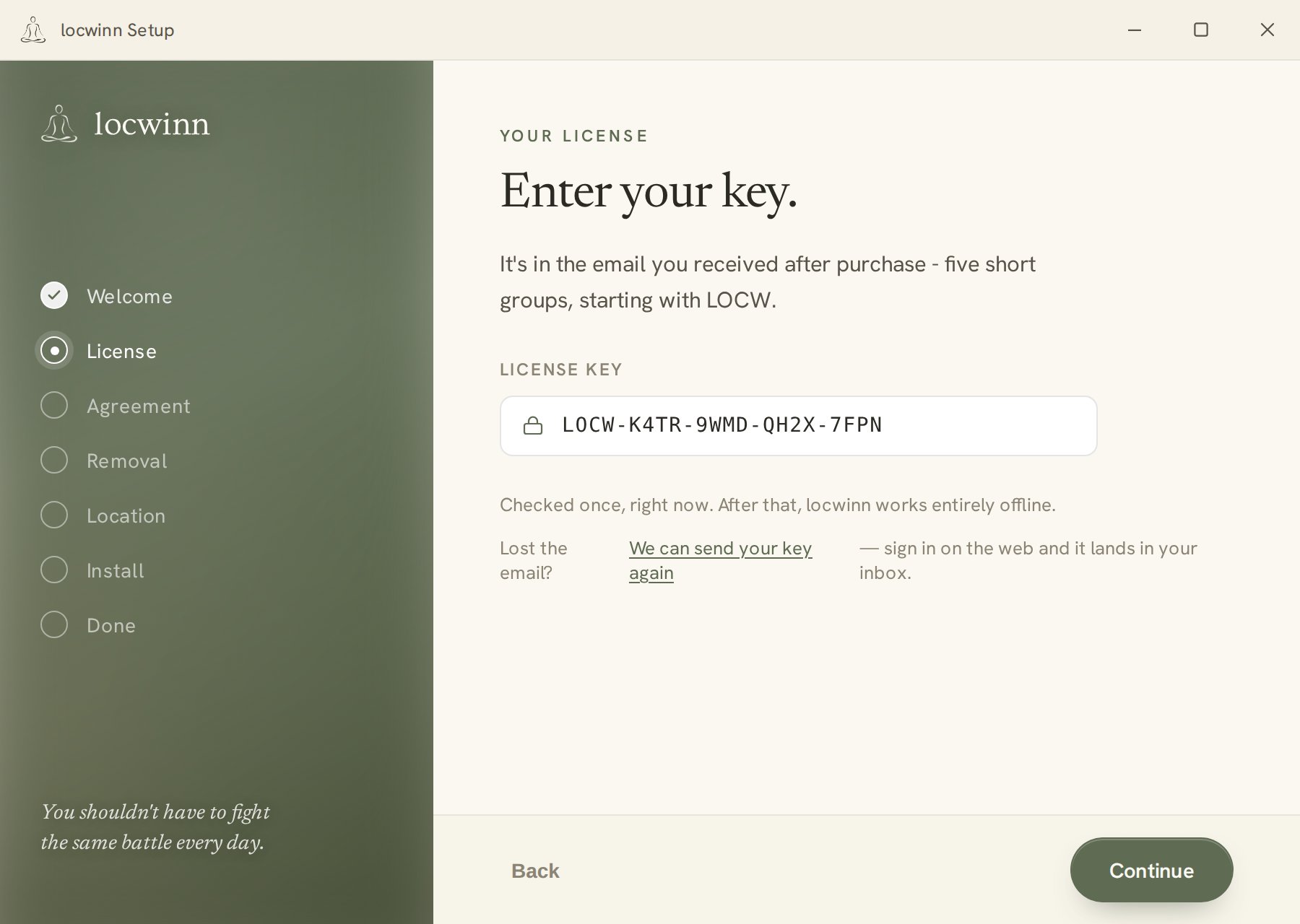
Now the installer asks for your license key — the code from your purchase email. The easiest way:
- Open your email and find the message from locwinn.com.
- Select the whole key with your mouse, then press Ctrl + C to copy it.
- Click inside the key box in the installer, then press Ctrl + V to paste.
Typing it by hand? The key never contains the letter I, the letter O, the number 0, or the number 1 — so anything that looks like one of those is something else. If the installer says the key isn't valid, check those characters first.
Click Continue. The installer checks your key over the internet — this needs your connection working, just this once.
Step 7 — The agreement
The installer shows you plainly what it will change on your computer. Read it, tick the agreement box, and click Continue.
Step 8 — Choose how hard it is to turn off
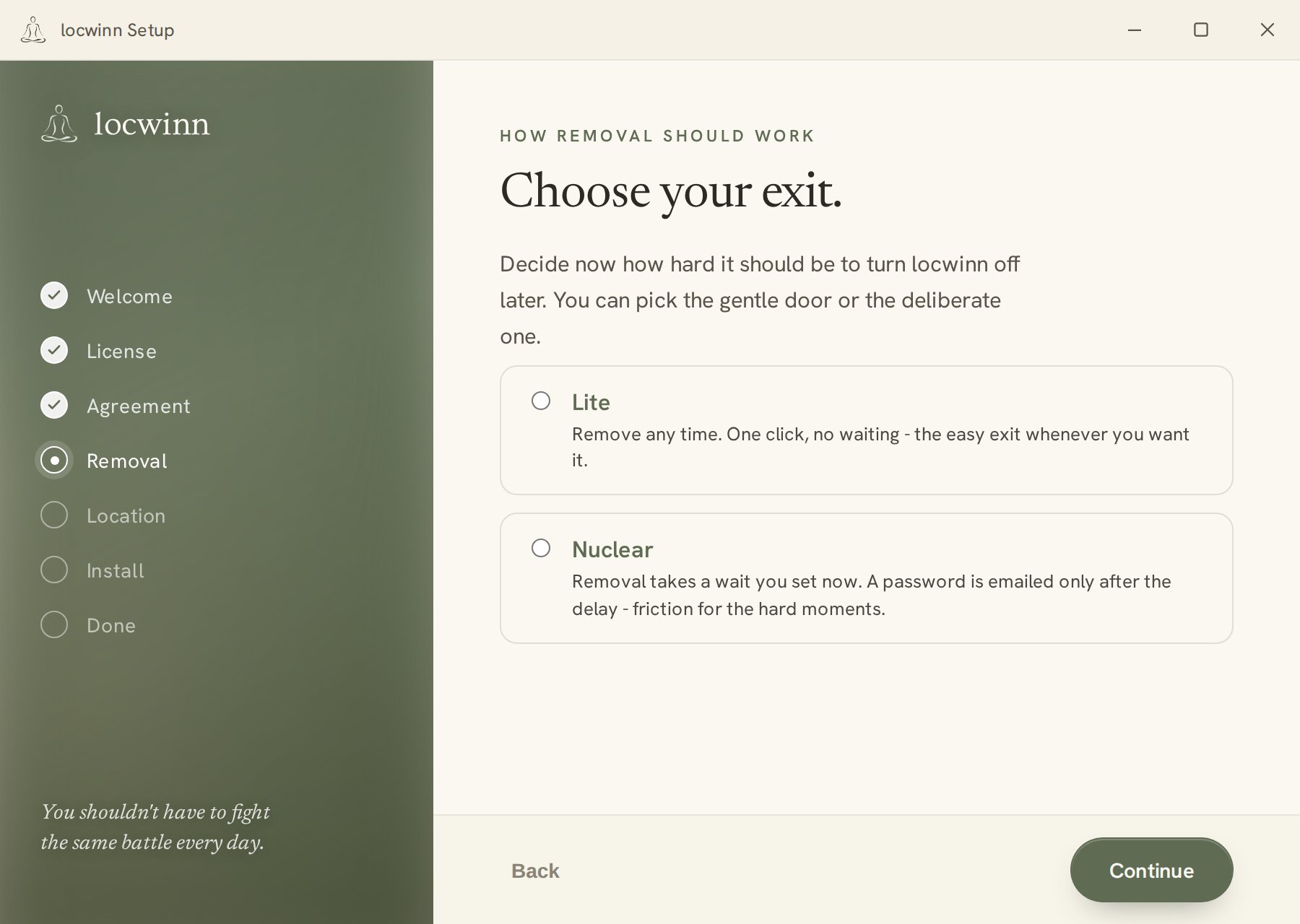
This is the one real decision. locwinn is deliberately hard to switch off in a weak moment, and here you choose how hard:
- Lite — you can remove it whenever you decide to, with a short deliberate process. Choose this if you're not sure.
- Nuclear — removing it takes a waiting period that you pick (from minutes up to a year). The unlock password is emailed to you only after the wait. Choose this if you want the block to really hold.
You can read exactly how removal works on the uninstalling page — you are never trapped. Pick one and click Continue.
Step 9 — Location, then install
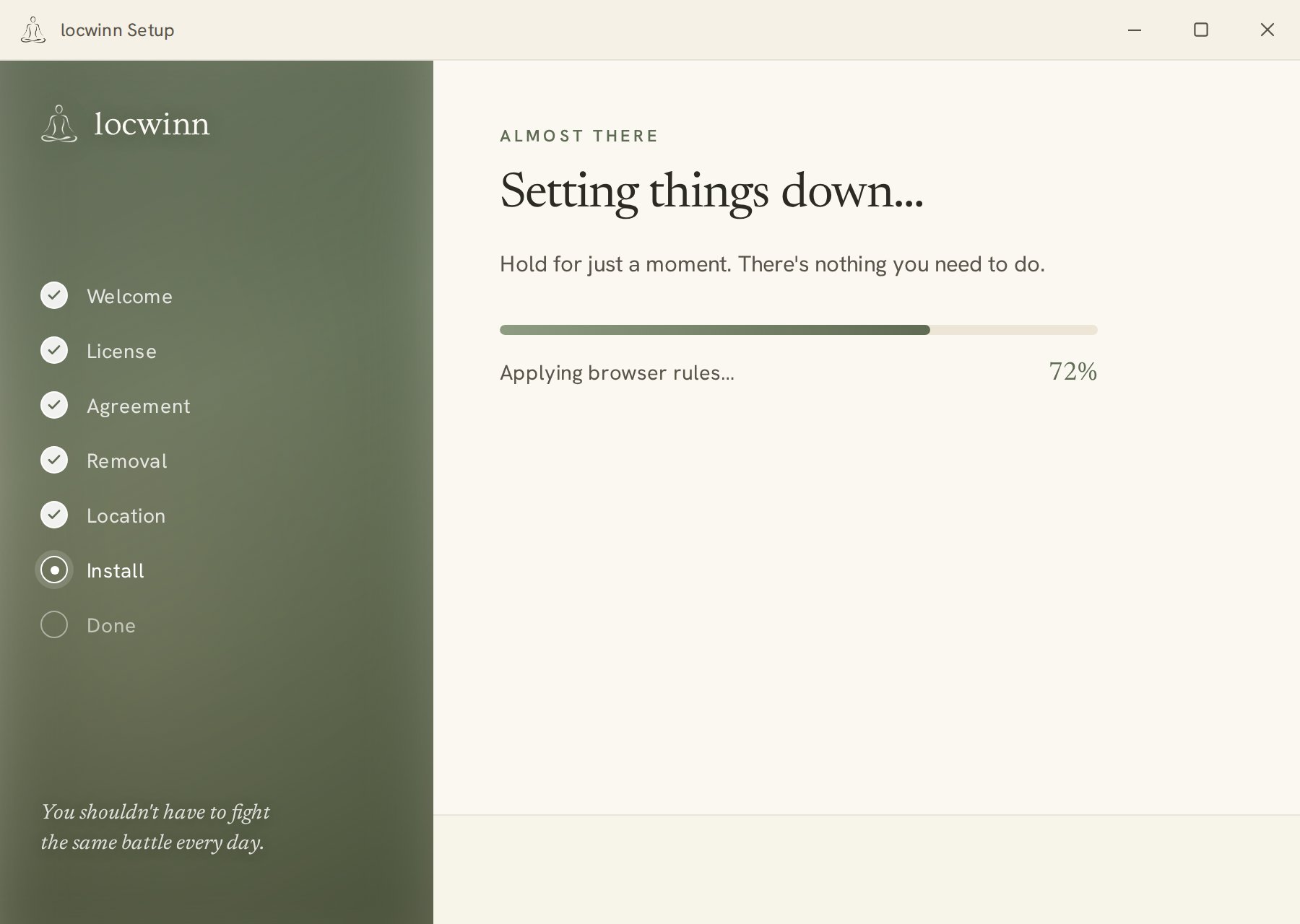
The installer suggests where to put the program — the suggested folder is fine; just click Install. A progress bar runs for under a minute.
Step 10 — Done
When the "Done" screen appears, click Finish. That's it — the block is on and there is nothing to open, configure, or remember. Adult sites simply stop loading in your browsers.
If something didn't work
- "License not valid": re-copy the key from the email (watch for extra spaces), or get it from your dashboard.
- "Server unreachable": check your internet is working and try again in a minute.
- The installer never opened: your antivirus may have quarantined it — see the support page.
- Anything else: email license@locwinn.com. Describe what you saw in your own words — screenshots welcome, and no question is too basic.